
Google Workspace for Education Tier Selector
Step 1: Define Your Needs
Select the features your school requires:
Recommended Solution
Fundamentals
Based on your requirements.
Fundamentals
- ✔ Core Apps (Classroom, Docs)
- ✔ 100 GB Storage/User
- ✘ No Phone Support
- ✘ Basic Security Only
Standard
- ✔ Everything in Fundamentals
- ✔ Unlimited Storage
- ✔ 24/7 Phone & Chat Support
- ✔ Gmail Virus Scan
Plus
- ✔ Everything in Standard
- ✔ Priority Support
- ✔ Drive Virus Scan
- ✔ Advanced Admin Dashboard
You’ve probably heard teachers talk about it, seen students logging in from home, or maybe you’re an administrator trying to figure out if it’s the right fit for your institution. But when people ask, “What is the Google education platform?”, they are usually referring to a specific suite of tools known as Google Workspace for Education, which is a collection of cloud-based productivity and collaboration applications designed specifically for schools, colleges, and universities. It isn’t just one app; it’s an ecosystem that replaces paper workflows with digital ones.
Let’s clear up the confusion right away. There is no single product called “Google Education Platform.” Instead, Google offers several tiers of services under the umbrella of Google Workspace for Education. These range from free basic accounts for K-12 schools to premium suites packed with advanced security and analytics for higher education institutions. Whether you are a teacher looking to grade papers faster, a student needing to collaborate on a group project, or an IT admin concerned about data privacy, this guide breaks down exactly what these tools do and how they work together.
Core Components of the Ecosystem
To understand the value, you need to look at the individual bricks that build the house. The core of the system relies on familiar names, but with educational twists. Here are the primary entities you will interact with daily:
- Google Classroom: This is the central hub. Think of it as a digital bulletin board combined with a homework submission portal. Teachers create classes, assign work, and provide feedback without printing a single sheet of paper.
- Google Docs, Sheets, and Slides: These are the word processor, spreadsheet, and presentation tools. Unlike Microsoft Office, they live in the browser and save automatically. Multiple students can edit a document at the same time, which makes group projects actually manageable.
- Google Drive: This is the storage locker. Every user gets a set amount of cloud space (often unlimited for certain tiers) to store files securely. Files sync across devices, so a student can start an essay on a school Chromebook and finish it on a personal tablet.
- Gmail: School-specific email addresses allow for professional communication between staff, parents, and students, separate from personal social media accounts.
The magic happens when these tools connect. For example, a teacher can create an assignment in Google Classroom and attach a template from Google Docs. When students open the assignment, they get their own private copy automatically. No emailing attachments back and forth, no lost versions.
Why Schools Choose Google Over Competitors
You might wonder why a school would pick Google over Microsoft Teams or other specialized Learning Management Systems (LMS) like Canvas or Blackboard. The answer usually comes down to simplicity and cost. Google Workspace for Education Fundamentals is free for most K-12 schools. That removes a massive barrier to entry for districts with tight budgets.
Furthermore, the interface is intuitive. If you have used Gmail or YouTube, you already know how to navigate the dashboard. This reduces the training time for both teachers and students. In contrast, some enterprise-grade LMS platforms have steep learning curves that require dedicated support teams to manage.
Another key factor is device agnosticism. Google tools run best on Chromebooks, which are cheap and durable, but they also work perfectly on iPads, Windows laptops, and Android phones. This flexibility is crucial for schools where students bring their own devices (BYOD policies).
Security and Privacy: What Parents Need to Know
Data privacy is a major concern for any digital platform handling minors’ information. Google has built its education suite around strict compliance standards. The platform adheres to COPPA (Children’s Online Privacy Protection Act) in the US and GDPR (General Data Protection Regulation) in Europe.
Here is what that means in practice: Google does not sell student data. More importantly, Google does not serve ads on any content within the education workspace. You won’t see targeted advertisements while a student is working on a history report. Admins have granular control over who can access data, and they can enforce two-factor authentication to prevent unauthorized logins.
For international schools, especially those in regions with strict local laws, Google provides transparency reports and allows admins to delete user data upon request. This level of control helps institutions maintain trust with parents and regulatory bodies.
Different Tiers for Different Needs
Not all schools have the same needs. A small rural primary school doesn’t need the same features as a large research university. Google structures its offerings into three main tiers to address this.
| Feature | Fundamentals | Standard | Plus |
|---|---|---|---|
| Cost | Free | $4 per user/month | $8 per user/month |
| Storage | 100 GB per user | Unlimited | Unlimited |
| Support | Community only | 24/7 Phone & Chat | 24/7 Priority Support |
| Virus Scan | No | Yes (Gmail) | Yes (Gmail + Drive) |
| Analytics | Basic | Advanced Usage Reports | Full Dashboard & Insights |
Fundamentals is great for getting started. It includes the core apps like Classroom, Docs, and Meet. However, it lacks dedicated phone support and advanced security scanning. Standard adds virus protection for emails and unlimited storage, which is vital for art or music departments that deal with large file sizes. Plus is aimed at larger institutions that need deep administrative controls, detailed usage analytics, and priority technical support.
Real-World Use Cases in the Classroom
How does this actually look on a Tuesday morning? Let’s walk through a typical scenario. Mr. Smith, a high school science teacher, wants his students to analyze water quality data. He uploads a raw dataset to Google Sheets and creates a link in Google Classroom. Students open the sheet, use built-in formulas to calculate averages, and insert charts directly into a shared Google Doc report. As they type, Mr. Smith can hover over their screens via the Teacher Console to offer real-time help without leaving his desk.
This workflow eliminates the friction of collecting physical papers. Grading becomes faster because teachers can leave comments directly on the digital document. Students receive immediate feedback and can revise their work before final submission. This iterative process encourages deeper learning rather than just rushing to finish a task.
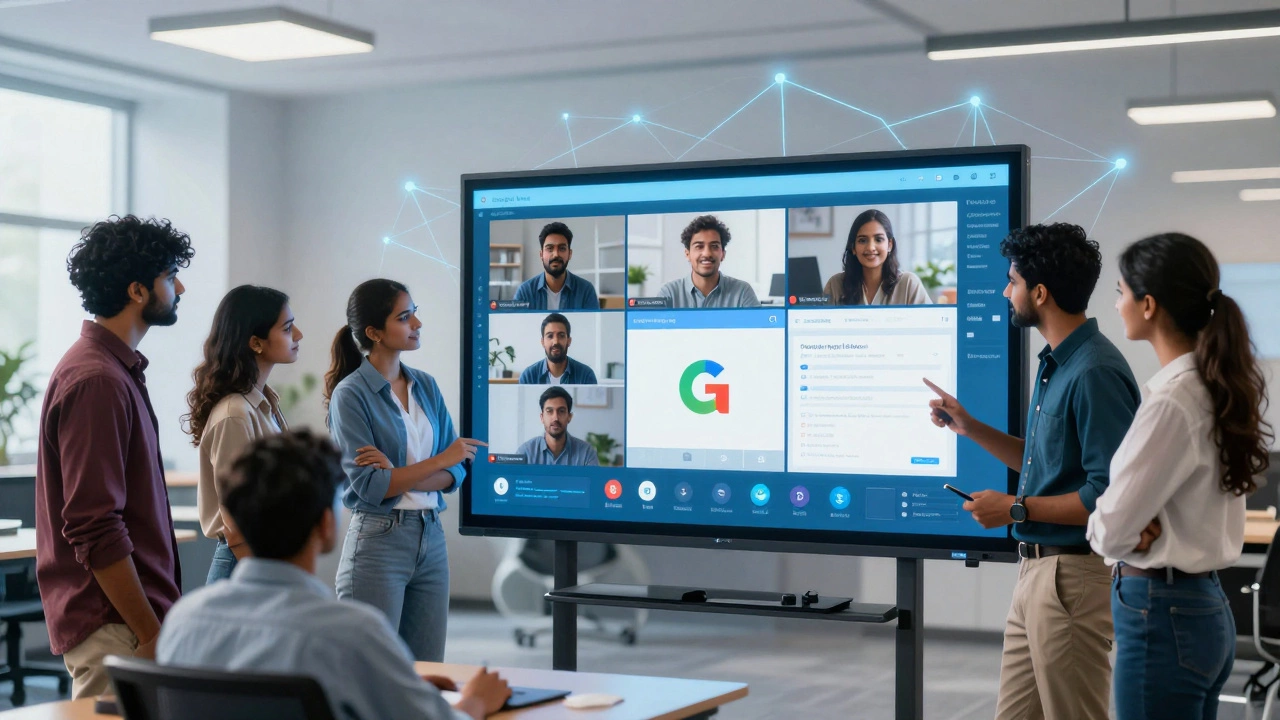
For remote learning situations, Google Meet integrates seamlessly. A teacher can start a video call directly from Classroom. Students join with one click. The screen sharing feature allows for live demonstrations, whether it’s solving a math problem on a digital whiteboard or reviewing code in a programming environment.
Challenges and Limitations
It isn’t all perfect. One common complaint is the reliance on internet connectivity. While offline modes exist for Docs and Sheets, they require prior setup and don’t cover every feature. If the Wi-Fi goes down during a critical exam or submission deadline, frustration spikes. Schools must invest in robust network infrastructure to make the platform effective.
Another issue is distraction management. Because these are general-purpose tools, students might be tempted to browse the web or chat during lessons. Administrators can use filters and monitoring tools to restrict access, but finding the balance between freedom and control is an ongoing challenge for many IT departments.
Additionally, while the free tier is generous, the lack of phone support can be frustrating for smaller schools without dedicated tech staff. When something breaks, waiting for a community forum response can delay resolution. This is often the deciding factor for schools upgrading to paid tiers.
Getting Started: A Quick Checklist
If you are ready to implement the platform, here is a practical path forward:
- Audit Your Current Tools: List what you currently use for email, storage, and assignments. Identify overlaps with Google’s offerings.
- Choose Your Tier: Start with Fundamentals if budget is tight. Plan for an upgrade to Standard if you anticipate heavy file usage or need virus protection.
- Train Your Staff: Don’t just hand out logins. Schedule workshops focused on specific workflows, like setting up a Classroom or using comment features in Docs.
- Set Up Security Policies: Enable two-factor authentication immediately. Configure parental consent forms if required by your region’s laws.
- Pilot Before Full Rollout: Test the system with one grade level or department first. Gather feedback and adjust settings before expanding to the whole school.
The Future of Digital Learning with Google
As AI continues to evolve, Google is integrating more intelligent features into its education suite. Tools like Gemini are beginning to appear in supported regions, helping students brainstorm ideas or summarize long texts. However, ethical guidelines are being strictly enforced to ensure these AI assistants support learning rather than replace it. Schools are encouraged to teach digital literacy alongside tool usage, ensuring students understand how to use technology responsibly.
The platform is also moving towards greater interoperability. With standards like LTI (Learning Tools Interoperability), Google Classroom can now connect with third-party apps like Khan Academy, Quizlet, and Turnitin. This creates a more flexible ecosystem where schools aren’t locked into a single vendor for every need.
Is Google Workspace for Education really free?
Yes, the "Fundamentals" tier is free for eligible K-12 schools and non-profit organizations. It includes core apps like Classroom, Docs, and Drive with 100GB of storage per user. However, higher tiers like Standard and Plus require a monthly subscription fee per user.
Can I use Google Classroom for higher education?
Absolutely. While often associated with K-12, many colleges and universities use Google Workspace for Education. They typically opt for the Plus tier to gain access to advanced security, unlimited storage, and priority support needed for larger, more complex institutions.
Does Google sell student data to advertisers?
No. Google explicitly states that it does not sell user data from its education products. Furthermore, there are no ads served within any Google Workspace for Education services, including Gmail, Drive, and Classroom.
What happens if the internet goes down?
Most core apps like Docs, Sheets, and Slides have offline capabilities. Users must enable offline mode in their Chrome browser settings beforehand. Changes made offline will sync automatically once the connection is restored. However, real-time collaboration features like video calls will not work without an active internet connection.
How does it compare to Microsoft Teams for Education?
Both are powerful suites. Microsoft Teams often appeals to institutions already invested in the Microsoft 365 ecosystem, offering deeper integration with Word, Excel, and PowerPoint desktop apps. Google Workspace is generally praised for its simpler interface, better mobile experience, and lower cost of entry, making it easier for quick adoption in diverse device environments.